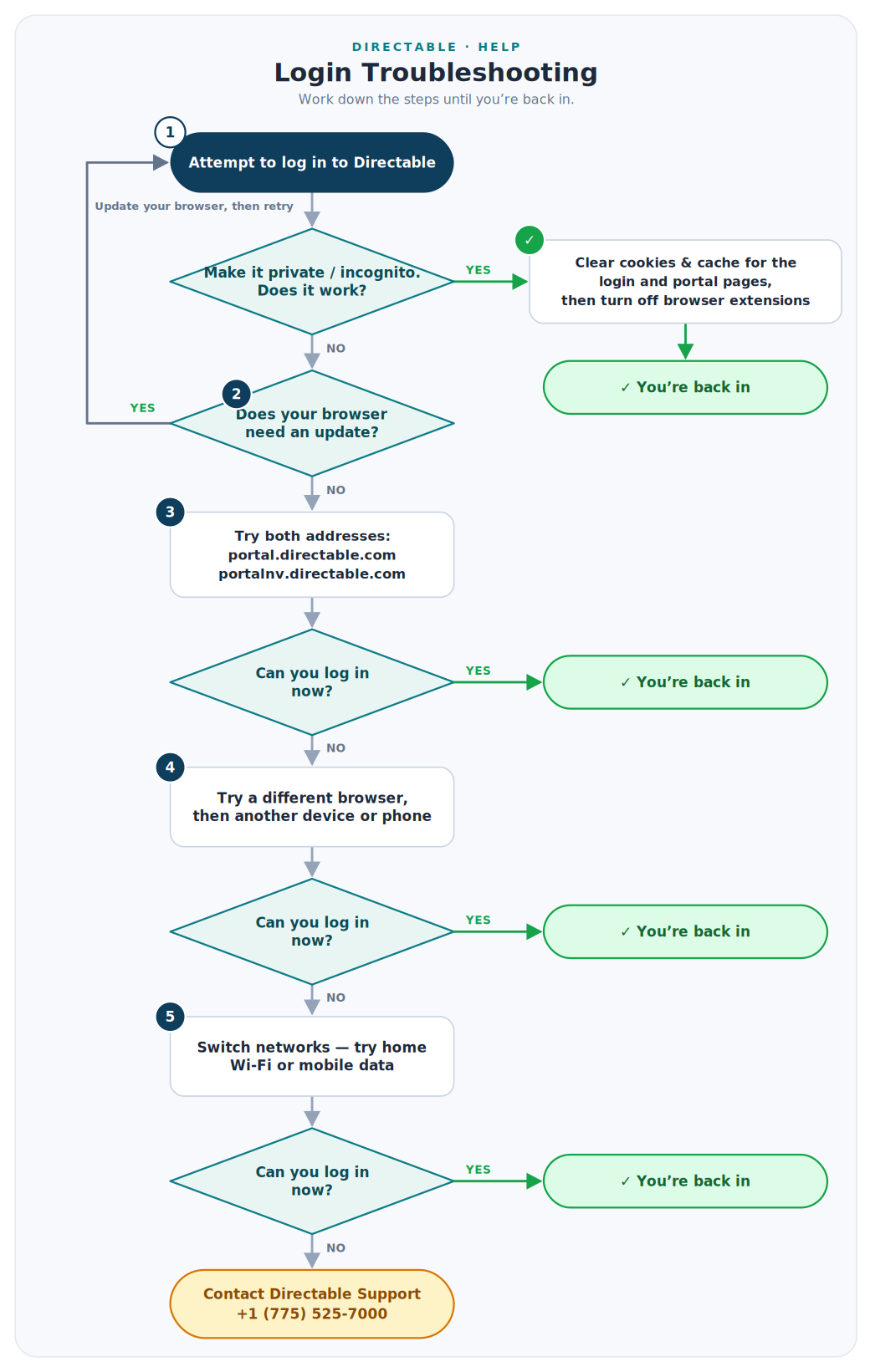
If you've tried to log in to Directable and something isn't working — the page won't accept your details, it flashes or flickers after you sign in, or it just keeps loading and never finishes — work through the steps below in order. After each one, try logging in again. These steps work in any modern browser (Chrome, Edge, Firefox, or Safari).
Use the flowchart above as your quick reference, and read the sections below whenever you need more detail on a step.
Step 1 — Try to log in, then test a private / incognito window
Start by attempting to log in as usual. If it doesn't work, the fastest thing to try is an incognito/private browsing window — it loads Directable fresh, ignoring your saved cookies and cache and turning off browser extensions, which quickly narrows down the cause.
Open a private window:
- Chrome / Edge: Ctrl + Shift + N (Windows) or ⌘ + Shift + N (Mac)
- Firefox: Ctrl + Shift + P (Windows) or ⌘ + Shift + P (Mac)
- Safari: File → New Private Window (⌘ + Shift + N)
Then go to your Directable portal and log in.
If it works in the private window, the problem is saved data or an extension in your normal browser. Fix it there and you're set:
- Clear cookies and cache for both the login page and the Directable portal page. In Chrome: three-dot menu → Delete browsing data (or Ctrl + Shift + Del / ⌘ + Shift + Del), set the time range to All time, tick Cookies and other site data and Cached images and files, click Delete data, then reopen your browser. Other browsers offer the same option under their history or privacy settings.
- Turn off browser extensions — ad blockers, privacy tools, and script blockers are the usual culprits. In Chrome: three-dot menu → Extensions → Manage Extensions, and toggle each off. Re-enable them one at a time afterward to find the one responsible. (Private mode disables extensions automatically, which is why the test above works.)
If it still won't log in, even in a private window, continue to Step 2.
Step 2 — Check for a browser update
An out-of-date browser can stop pages from loading correctly.
- Chrome: three-dot menu → Help → About Google Chrome. It updates automatically if an update is available; restart the browser afterward.
- Other browsers: check for updates in their About or settings menu.
If your browser needed an update, install it and try logging in again — a private-window login often works once the browser is current. If there was no update, or updating didn't help, continue to Step 3.
Step 3 — Try both portal addresses
Directable can be reached at more than one address. Try each:
Can you log in now? If yes, you're back in. If not, continue to Step 4.
Step 4 — Try a different browser or device
If you normally use Chrome, try Edge, Firefox, or Safari on the same computer. If that doesn't help, try another device entirely — a different computer, or your phone. This shows whether the problem is tied to one browser or one device.
Can you log in now? If yes, you're back in. If not, continue to Step 5.
Step 5 — Switch networks
Workplace networks sometimes block or interfere with access. If you're on a work connection, try again from home, another non-work network, or your phone's mobile data.
Can you log in now? If yes, you're back in. If the site works on another network but not your work one, ask your IT team to allow access to Directable.
Still can't log in? Contact support
If you've worked through every step and still can't get in, contact Directable Support. If your login details themselves aren't being accepted, our team can issue a one-time password reset to get you back into your account.
- Phone: +1 (775) 525-7000
- Email: support@directable.com
- Website: www.directable.com